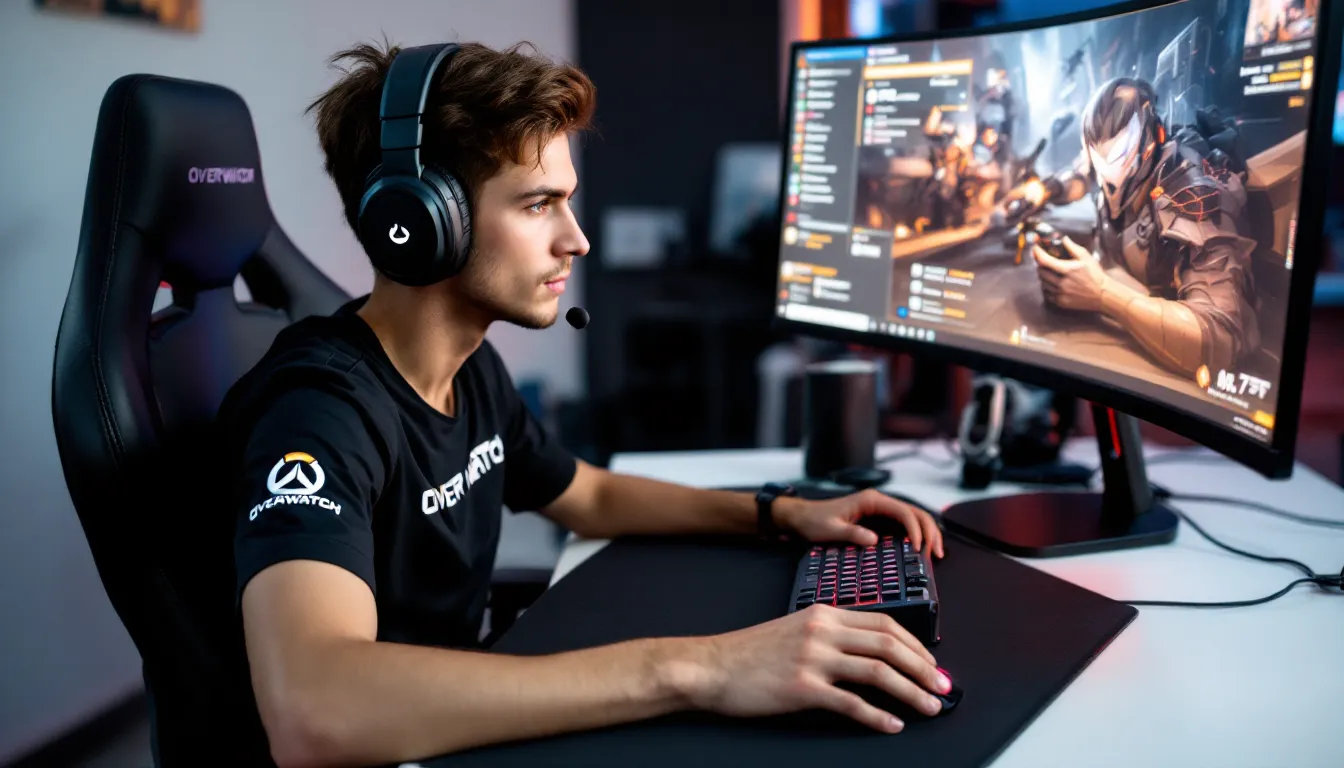
The difference between a good Overwatch player and a great one often comes down to the tiniest details. That flick shot that barely misses? Could be your sensitivity. The enemy Tracer you heard too late? Might be your audio mix. The frame drops during a crucial team fight? Probably your graphics settings sabotaging your reaction time.
Pro players don’t just have better aim and game sense, they’ve spent hundreds of hours fine-tuning every setting to squeeze out every possible advantage. And here’s the thing: you don’t need their reflexes to benefit from their configurations. Whether you’re grinding through ranked or just trying to land more headshots in Quick Play, understanding and adapting pro settings can legitimately level up your game.
This guide breaks down the exact settings top Overwatch pros use in 2026, from mouse DPI to crosshair customization, and, more importantly, shows you how to adapt them to your own setup and playstyle. No filler, no guessing. Just the specifics you need to compete.
Table of Contents
ToggleKey Takeaways
- Overwatch pro settings optimize performance through lower sensitivity (3,200-6,400 eDPI), high frame rates (240+ fps), and Fullscreen mode to maximize competitive advantages like precision and reaction time.
- Most professionals standardize on 1920×1080 resolution with 240Hz+ monitors and disable visual distractions like shadows and reflections to maintain consistent 300+ fps for reduced input lag.
- Effective DPI (eDPI) calculations matter more than individual DPI settings alone—800 DPI with 5 sensitivity (4,000 eDPI) and 1600 DPI with 2.5 sensitivity (4,000 eDPI) achieve the same result but feel different due to pixel precision differences.
- Custom keybinds that move abilities to mouse buttons preserve WASD movement control and enable faster ability combos, while crosshair customization should prioritize high-contrast colors and minimal opacity for clarity.
- Audio tuning is an underrated competitive advantage—using headphones with clear mid-high frequency response to identify distinct footsteps, ability sounds, and ultimate voice lines provides critical positional information.
- Successful adaptation of pro settings requires testing your own hardware constraints, desk space, and hero pool for 10-15 hours before making adjustments, rather than blindly copying configurations without context.
Why Pro Settings Matter in Overwatch
Overwatch operates on razor-thin margins. At higher ranks, where players have similar mechanical skills and game knowledge, the difference between winning and losing a duel often comes down to setup optimization.
Pro settings aren’t magic bullets, but they’re battle-tested configurations designed to maximize performance. These players compete for paychecks and roster spots, every setting they use has a purpose. High frame rates reduce input lag. Specific audio mixes help pinpoint footsteps. Optimized sensitivity enables consistent tracking and flicks.
The competitive ladder rewards consistency above all else. When your settings are dialed in, you eliminate variables. Your muscle memory develops faster. Your reads become more reliable. You stop blaming your gear and start identifying actual mistakes.
That said, blindly copying settings won’t turn you into Proper overnight. The value lies in understanding why pros configure their game the way they do, then adapting those principles to your hardware, desk space, and natural tendencies. A 800 DPI, 5 in-game sensitivity might work for a pro with a massive mousepad and low desk, but it could be unplayable if you’re gaming on a small setup.
The goal isn’t imitation, it’s education. Learn the reasoning, test the ranges, find your configuration.
Understanding the Fundamentals of Pro Settings
Mouse Settings and Sensitivity
Mouse sensitivity is the foundation of your aim, and pros approach it with surgical precision. Most top-level players use significantly lower sensitivity than casual gamers expect. We’re talking effective DPI (eDPI) ranges between 3,200 and 6,400 for DPS players, with some hitscan specialists going even lower.
eDPI is calculated by multiplying your mouse DPI by your in-game sensitivity. For example, 800 DPI × 5 sensitivity = 4,000 eDPI. This number gives you a consistent way to compare sensitivities across different mice and settings.
The sweet spot for most roles:
- DPS (hitscan): 3,200–5,000 eDPI
- DPS (projectile): 4,000–6,000 eDPI
- Tank: 4,500–7,000 eDPI
- Support: 4,000–6,500 eDPI
Lower sensitivity enables finer control for precise aiming, especially important for heroes like Widowmaker, Ashe, or Cassidy. The trade-off? You need more physical space for 180-degree turns. Many competitive players transitioning from other FPS games find Overwatch’s optimal ranges slightly higher than tactical shooters but lower than arena games.
Mouse acceleration should be disabled, both in Windows and in-game. Pros need predictable, 1:1 relationships between hand movement and crosshair position. Acceleration introduces inconsistency that destroys muscle memory.
Polling rate should be maxed out, 1000Hz is standard on modern gaming mice. This reduces input lag and makes tracking feel more responsive.
DPI vs. In-Game Sensitivity: Finding Your Balance
Here’s where things get technical, but it matters. You can achieve the same eDPI with different DPI/sensitivity combinations: 400 DPI × 10 sens equals 800 DPI × 5 sens (both = 4,000 eDPI). But they don’t feel identical.
Most pros prefer higher DPI (800–1600) with lower in-game sensitivity for a few reasons:
- Better pixel precision: Higher DPI gives the sensor more data points, making micro-adjustments smoother
- Reduced pixel skipping: At very low DPI, you can sometimes skip pixels during slow movements
- Windows desktop usability: Higher DPI makes your mouse feel normal outside the game
The most common configurations in 2026:
- 800 DPI with 4–7 in-game sensitivity
- 1600 DPI with 2–3.5 in-game sensitivity
Avoid going below 400 DPI or above 3200 DPI. Below 400, you might encounter pixel skipping. Above 3200, sensor accuracy can degrade on some mice, though modern high-end sensors handle it better than older models.
Test different combinations within your target eDPI range. Some players swear they can feel the difference: others consider it placebo. What’s definitely not placebo is finding an eDPI that allows comfortable 180s without sacrificing headshot precision.
Video Settings Used by Top Overwatch Pros
Resolution and Aspect Ratio Preferences
The pro scene has largely standardized around 1920×1080 (1080p) at 16:9 aspect ratio. Unlike some competitive games where stretched resolutions dominate, Overwatch pros prioritize clarity and field of view over potential target-size advantages.
Breakdown of pro player resolutions in 2026:
- 1920×1080 (1080p): ~85% of pros
- 2560×1440 (1440p): ~12% of pros
- 3840×2160 (4K): <3% of pros
1080p offers the best balance of visual clarity and performance. Even players with hardware capable of maintaining 360+ fps at 1440p often stick with 1080p because frame stability matters more than pixel density. When you’re tracking a blinking Tracer or trying to land sleep darts on a diving Doomfist, you need every frame you can get.
Refresh rate is non-negotiable at the pro level. The baseline is 240Hz, with some players using 360Hz monitors. The difference between 144Hz and 240Hz is noticeable in fast-paced team fights, smoother motion clarity makes tracking more consistent.
Render scale is almost universally set to 100%. Lowering it below 100% creates a blurry mess that makes target identification harder. Some players experimented with 75% render scale during the early Overwatch days to maximize frame rate, but modern hardware makes that trade-off unnecessary.
Graphics Quality Settings for Competitive Advantage
Here’s the dirty secret: pros run Overwatch on settings that would make it look like a game from 2010. Visual fidelity takes a backseat to performance and competitive clarity.
Standard pro graphics configuration:
Display Mode: Fullscreen (not borderless windowed, reduces input lag)
Quality Preset: Custom (never use presets)
Render Scale: 100%
Texture Quality: Low to Medium (minimal fps impact, but lower VRAM usage)
Texture Filtering Quality: Low to Epic (personal preference, negligible performance difference)
Local Fog Detail: Low (removes visual clutter)
Dynamic Reflections: Off (distracting and performance-heavy)
Shadow Detail: Off or Low (shadows can obscure enemies and drop frames)
Model Detail: Medium to High (affects hero visibility at distance)
Effects Detail: Low (reduces visual noise from abilities)
Lighting Quality: Low (better visibility in dark areas)
Antialias Quality: Low to Medium (smooths edges without major fps cost)
Refraction Quality: Low (water and glass effects, unnecessary)
Screenshot Quality: 1× (irrelevant to performance)
Local Reflections: Off (more visual clutter)
Ambient Occlusion: Off (performance hit for minimal visual benefit)
Damage FX: Default (some debate here, higher settings make it easier to see you’re taking damage)
The philosophy is simple: if a setting creates visual noise, distracting reflections, or frame drops, it goes to Low or Off. According to data from ProSettings, the average pro runs a graphics config that looks borderline ugly on stream but maintains 300+ fps consistently.
Frame rate targets for competitive play:
- Minimum: 180+ fps
- Recommended: 240+ fps
- Ideal: 300+ fps
Even with a 240Hz monitor, maintaining fps well above your refresh rate reduces frame time variance and input lag. The game engine samples your inputs more frequently at higher frame rates.
Crosshair Settings and Customization
Crosshair preference is wildly personal, but patterns emerge among pros. The default crosshairs are almost never used, they’re too large, too distracting, or poorly suited to specific heroes.
General principles pros follow:
Color: Bright green (most common), cyan, or magenta. These colors contrast well against most backgrounds. Some players use color-blind assist colors (yellow, purple) even without color blindness because they pop on every map.
Opacity: 100% (no reason to make it translucent)
Outline opacity: 50-100% (helps crosshair stand out against bright backgrounds)
Dot: Many pros use a small dot for precision heroes. Size 2-4 is typical. Dot crosshairs force you to be precise and don’t obscure the target.
Cross: For heroes requiring tracking (Tracer, Soldier: 76, Zarya), a small cross with 1-2px thickness is common. Length around 6-10, gap 8-15.
Circle: Less common overall, but some Genji and Tracer players prefer circles to help visualize spread.
Popular hero-specific crosshair configs:
Widowmaker/Ashe: Small green dot (size 3-5) with 100% outline. Clean and precise for flick shots.
Tracer/Soldier: 76: Small green cross, thickness 2, length 8, gap 12. Helps with tracking while showing spread.
Reinhardt/Winston: Larger crosshair or even default works fine since precision is less critical.
Ana: Dot or small cross with high contrast. Scope precision matters for sleep darts and anti-nades.
Zenyatta: Small cross or dot. Discord orb targeting requires precision.
Pros typically create custom crosshairs for specific heroes rather than using one universal setting. If you’re maining multiple heroes across roles, expect to spend time dialing in 5-10 different crosshair configs.
One often-overlooked setting: Show Accuracy (displays a circle showing weapon spread). Almost all pros disable this, it’s visual clutter that doesn’t help in the moment.
Role-Specific Pro Settings Breakdown
DPS Player Settings and Configurations
DPS players show the widest sensitivity variance because the role covers everything from Widowmaker (precision hitscan) to Genji (high mobility melee/projectile).
Hitscan DPS (Widowmaker, Ashe, Cassidy, Soldier: 76):
- eDPI: 3,200–4,800
- Scoped sensitivity: 30–50 (relative to base)
- Low sens enables precise flicks and headshots
- Example: Proper (Dallas Fuel) uses 800 DPI, 4.5 sens = 3,600 eDPI
Flanker DPS (Tracer, Genji, Sombra):
- eDPI: 4,800–6,400
- Higher sens needed for quick 180s and vertical movement
- Example: Kevster (Los Angeles Gladiators) runs higher sens for Tracer mobility
Projectile DPS (Pharah, Junkrat, Echo):
- eDPI: 4,000–5,500
- Middle ground between precision and mobility
- Prediction matters more than pixel-perfect accuracy
DPS pros often maintain multiple sensitivity profiles and switch based on hero pool. A Widowmaker specialist might use 3,600 eDPI, while the same player bumps to 5,000+ when flexing to Genji.
Tank Player Settings and Adjustments
Tank players generally run higher sensitivity than DPS because situational awareness and quick target switching matter more than precision aim.
Main Tank (Reinhardt, Winston, Wrecking Ball):
- eDPI: 5,000–7,500
- Need to track multiple enemies and turn quickly
- Example: Fearless (Houston Outlaws) uses relatively high sens for Winston mobility
Off Tank/Brawler (D.Va, Zarya, Roadhog):
- eDPI: 4,500–6,500
- Balance between tracking (Zarya beam, D.Va matrix placement) and 180s
- Roadhog hook requires moderate precision but not hitscan levels
Sigma/Orisa:
- eDPI: 4,000–5,500
- More projectile/precision-oriented, sens closer to DPS ranges
Tanks benefit from having clear understanding of competitive mechanics since positioning and cooldown management matter as much as raw mechanical skill.
Support Player Settings and Preferences
Precision Supports (Ana, Baptiste, Kiriko):
- eDPI: 4,000–5,500
- Ana especially needs lower sens for sleep dart and anti-nade accuracy
- Scoped sensitivity (Ana): 35–55 relative
Mobility Supports (Lúcio, Mercy):
- eDPI: 5,500–8,000
- Lúcio wallriding requires quick camera movement
- Mercy doesn’t need precision aim, prioritizes awareness
Hybrid Supports (Zenyatta, Moira):
- eDPI: 4,500–6,000
- Zen requires good aim for Discord picks
- Moira needs mobility for fade positioning
Support players often use the widest variety of peripherals and configs because the role demands different skills across the hero pool. Players who coached through dedicated improvement programs frequently emphasize support flexibility in both hero pool and settings adaptation.
Audio Settings for Competitive Play
Audio is criminally underrated by ladder players, but pros treat it as seriously as aim. Footsteps, ability sounds, and ultimate callouts provide information you can’t get visually.
Master Volume: 80-100%. You need to hear everything clearly, but some players lower it slightly to prevent ear fatigue during long sessions.
Music Volume: 0%. Zero debate here. Music is purely atmospheric and masks important audio cues.
Effects Volume: 80-100%. This controls ability sounds, footsteps, weapon fire, the critical stuff. Never lower this below 60%.
Dolby Atmos for Headphones: Mixed opinions. Some pros swear by it for vertical audio positioning (important for tracking Pharah, Echo, or Mercy). Others find it makes directional audio less precise and keep it off. Test both extensively.
Headphone/Speaker toggle: Always Headphones if you’re using headphones (seems obvious, but the setting affects the mix).
Pro audio setup best practices:
- Use headphones, not speakers. Directional audio is essential.
- Closed-back over open-back. Better isolation, clearer positional cues.
- Avoid bass-heavy gaming headsets. You need clarity in the mid-high range where footsteps and ability sounds live.
- No external EQ boosting. Overwatch’s mix is already tuned for competitive clarity.
Specific sounds to train your ear for:
- Footsteps: Each hero has distinct audio signatures. Doomfist’s heavy steps sound different from Genji’s light movements.
- Ability prep sounds: Cassidy’s flashbang toss, Roadhog hook windup, Ana pulling out her sleep dart.
- Ultimate voice lines: Enemy ults are louder and in native languages (“Ryuu ga waga teki wo kurau” for enemy Genji vs. “The dragon becomes me” for friendly).
Many resources including competitive FPS guides emphasize audio tuning as a free advantage most players ignore.
Keybinds and Control Configurations
Default keybinds are functional but far from optimal. Pros rebind nearly everything to minimize finger travel and enable faster ability combos.
Common rebinds across most pros:
Ability 1 (E): Often moved to a side mouse button. Keeps movement fingers (WASD) free while casting.
Ability 2 (Shift): Sometimes kept default, sometimes moved to another mouse button or Q (swapping with ult).
Ultimate (Q): Some players prefer mouse button or middle mouse to avoid accidentally fat-fingering it.
Melee (V): Almost always rebound to a mouse button (usually M4 or M5). You need instant melee for finishing low-HP targets or animation canceling.
Crouch (Ctrl): Sometimes moved to C or a thumb mouse button for easier crouch-spamming.
Jump (Space): Occasionally bound to scroll wheel for specific heroes (Mercy superjump, Moira bounce tech).
Reload (R): Usually kept default, though some players bind it to mouse thumb.
Communication wheel: Often rebound away from default C to something more accessible.
Hero-specific binds are common:
- Mercy: Guardian Angel (shift) sometimes on M4, damage boost toggle on scroll
- Lúcio: Crossfade on M4, jump on scroll wheel for wallride consistency
- Genji: Swift strike on M4, deflect on M5
- Moira: Orb on easily accessible button for quick combos
The golden rule: abilities you need mid-fight should never require taking fingers off WASD or mouse. If you’re pressing E and can’t strafe right simultaneously, that’s a problem.
Many pros recommend starting with small changes rather than overhauling everything at once. Rebind one ability, practice for a week, then adjust another. Complete rebind overhauls take 20-40 hours of play to feel natural.
Top Overwatch Pro Players and Their Settings
Studying specific pro configs helps identify patterns and gives you starting points for testing. Here’s a snapshot of settings from top-performing players in early 2026:
Proper (DPS, Dallas Fuel)
- DPI: 800
- Sensitivity: 4.5
- eDPI: 3,600
- Resolution: 1920×1080, 240Hz
- Crosshair: Small green dot for hitscan
Kevster (DPS, Los Angeles Gladiators)
- DPI: 800
- Sensitivity: 6.0
- eDPI: 4,800
- Resolution: 1920×1080, 360Hz
- Crosshair: Green cross, varies by hero
Hanbin (Tank, Dallas Fuel)
- DPI: 800
- Sensitivity: 7.0
- eDPI: 5,600
- Resolution: 1920×1080, 240Hz
- Crosshair: Green cross
Fearless (Tank, Houston Outlaws)
- DPI: 1600
- Sensitivity: 3.5
- eDPI: 5,600
- Resolution: 1920×1080, 240Hz
- Higher DPI preference for smoother micro-movements
Fielder (Support, Dallas Fuel)
- DPI: 800
- Sensitivity: 5.5
- eDPI: 4,400
- Resolution: 1920×1080, 240Hz
- Ana specialist, lower sens for precision
Viol2t (Support, San Francisco Shock)
- DPI: 800
- Sensitivity: 6.5
- eDPI: 5,200
- Resolution: 1920×1080, 240Hz
- Flex support requiring versatility
Notice the patterns: 800 DPI dominates, nobody’s running 4K, everyone’s on 240Hz+, and eDPI clusters around 3,600-5,600 depending on role and hero pool.
Detailed settings databases like those found in competitive gaming resources track dozens more players, but these represent the current meta approach to settings configuration.
How to Adapt Pro Settings to Your Playstyle
Common Mistakes When Copying Pro Settings
The #1 mistake? Copying settings exactly without considering personal factors. Proper’s 3,600 eDPI works for him because he’s been grinding similar sensitivities for years, has a specific mousepad size, and plays primarily hitscan heroes. You might be a projectile player with a tiny desk.
Mistakes to avoid:
Switching too frequently. Changing sensitivity every few days prevents muscle memory development. Give each config at least 10-15 hours of actual play before evaluating.
Ignoring hardware limitations. If your PC can’t maintain 200+ fps, cranking settings to Low won’t transform your gameplay. Address the hardware bottleneck first.
Desk space mismatch. Pro-level low sensitivity requires 30-40cm per 360-degree turn. If you don’t have a large mousepad and desk space, you’ll run out of room constantly.
Chasing the latest pro trend. Settings shift slightly as patches change game feel, but fundamentals remain constant. Don’t rebuild your config every time a pro switches from 800 to 1600 DPI.
Neglecting the warmup period. New settings feel awkward initially. That’s normal. The real test is performance after adjustment time.
Role mismatch. Using a main tank’s settings as a Widowmaker player makes no sense. Match the role and hero pool first, then fine-tune.
Testing and Fine-Tuning Your Configuration
Here’s a systematic approach to finding your optimal settings:
Step 1: Pick a baseline eDPI from the ranges mentioned earlier for your primary role. Start in the middle of the range.
Step 2: Test 360 movement. You should be able to do a full turn comfortably without running out of mousepad. If you can’t, increase sensitivity slightly.
Step 3: Test flick accuracy. Use Widowmaker or Cassidy in the practice range. Can you consistently headshot the training bots with flicks? If you’re overshooting, lower sensitivity. Undershooting? Raise it.
Step 4: Test tracking. Pick Soldier: 76 or Tracer and track moving targets. Does your crosshair feel smooth and controllable, or jittery? Adjust accordingly.
Step 5: Play real matches. Training range only reveals so much. Play 5-10 competitive or quick play matches before making changes.
Step 6: Make small adjustments. Change eDPI by 200-400 at a time, not 1,000+. Small tweaks let you narrow in without starting over.
Step 7: Test across your hero pool. Settings that work for one hero might feel wrong on another. You may need separate configs.
Tracking your performance:
Keep notes on settings and your subjective feel. “800 DPI, 5 sens, felt good on Ashe, too slow on Tracer.” Objective stats help too: accuracy percentages, critical hit rates, win rates over 20+ match samples.
Some players find their sweet spot in a week. Others experiment for months. There’s no shortcut, but starting from proven pro ranges beats random guessing.
Conclusion
Settings won’t carry you out of Bronze, but they’ll stop holding you back. The pros featured in this guide didn’t pick their configs randomly, they’re the result of thousands of hours of iteration, professional coaching, and performance analysis. Now you’ve got the blueprint.
Start with the fundamentals: get your eDPI in the right range for your role, max out your frame rate with optimized graphics, and build keybinds that keep your hands efficient. From there, it’s about testing, adaptation, and building muscle memory.
Don’t expect instant results. Your first few hours with pro-style low sensitivity will feel sluggish if you’re coming from high sens. Your new keybinds will cause missed abilities. That’s the adjustment period, not a sign the settings are wrong.
The real advantage of pro settings isn’t that they make you aim like a pro, it’s that they eliminate technical excuses. When your config is dialed in, performance becomes about decisions, positioning, and mechanics. And those are skills you can actually practice and improve.
Now go test, adjust, and climb.