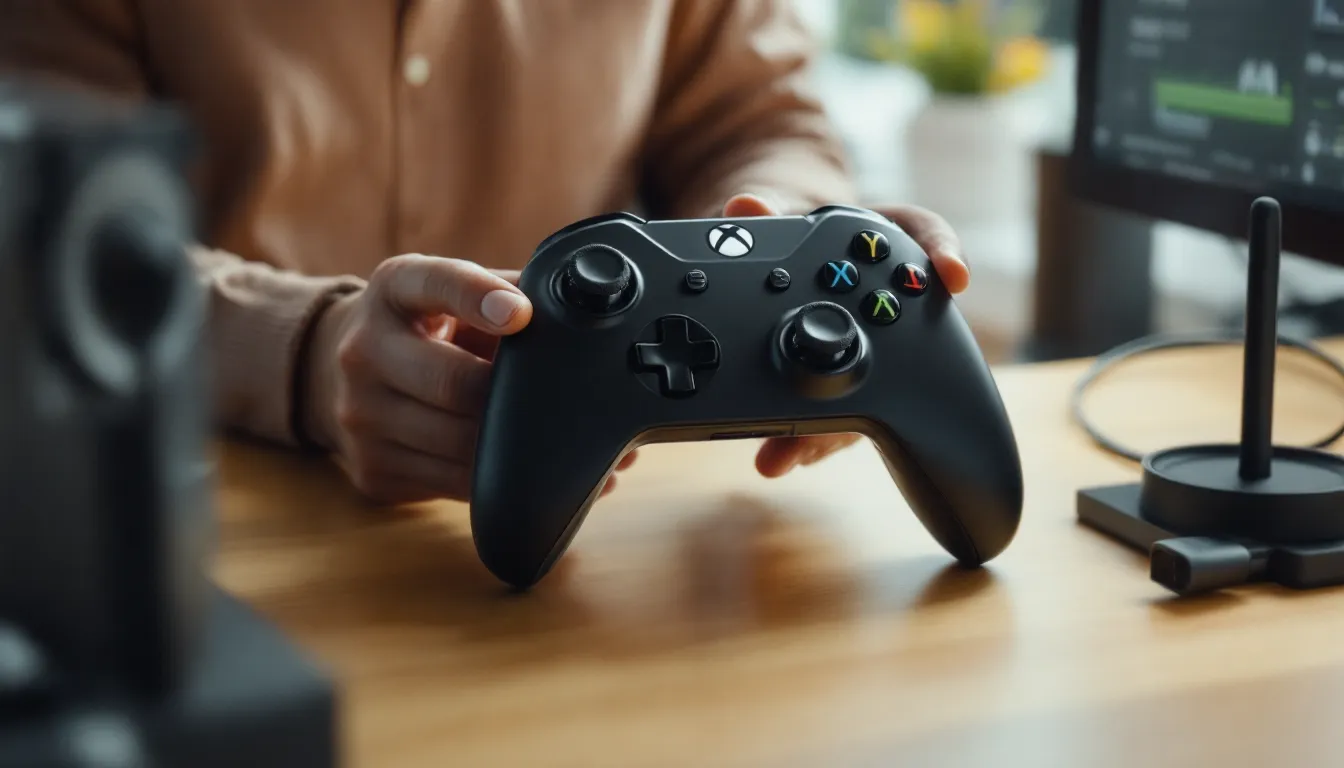
Getting your controller synced to your Xbox One should take seconds, not a support ticket. Whether you just unboxed a new controller, swapped batteries, or picked up an Elite Series 2, the connection process is straightforward, when you know the right steps. But plenty can go sideways: a stubborn pairing mode, a USB cable that only charges (but doesn’t sync), or a third-party controller that doesn’t behave like the official hardware.
This guide covers every connection scenario for Xbox One consoles in 2026. You’ll learn the exact button sequences for wireless pairing, when to use wired over wireless, how to sync multiple controllers without kicking others off, and the troubleshooting steps that actually fix connection drops. If you’re running an Elite controller, a PowerA wired pad, or even an adapter setup for non-Xbox peripherals, we’ve got you covered.
Table of Contents
ToggleKey Takeaways
- To connect controller to Xbox One wirelessly, press and hold the Xbox button on the controller, then press the console’s Pair button within 20 seconds—the process takes under 20 seconds when done correctly.
- Wired USB connections offer lower input lag (1.2ms vs. 5.8-8.4ms wireless) and eliminate battery drain, making them ideal for competitive shooters and fighting games where frame-perfect inputs matter.
- Fresh batteries and clear line-of-sight are the first troubleshooting steps for connection issues; weak batteries and wireless interference cause most pairing failures and random disconnections.
- Xbox One supports up to eight controllers simultaneously, and controllers remember the console after initial pairing, so you only need to press the Xbox button next time without repeating the Pair button sequence.
- Use data-rated USB cables (not charging-only cables) for wired connections; Xbox One controllers use Micro-USB while Elite Series 2 models require USB-C for syncing and charging.
- Firmware updates through the Xbox Accessories app improve wireless performance, battery efficiency, and fix bugs like stick drift—Microsoft releases updates 2-3 times per year and Elite Series 2 owners should update every few months.
Understanding Xbox One Controller Connection Options
Xbox One controllers connect in two main ways: wirelessly via Xbox Wireless protocol, or wired through a USB cable. Both methods work on all Xbox One models (original, S, and X), but each has trade-offs worth considering before you commit.
Wireless vs. Wired Connections: Which Is Right for You?
Wireless is the default choice for most players. It’s clean, lets you lean back on the couch, and supports up to eight controllers on a single console. Xbox Wireless uses a proprietary 2.4 GHz protocol (not Bluetooth on older models) with lower latency than standard Bluetooth. The downside? Battery life. Even with rechargeable packs, you’re looking at 30-40 hours of play before swapping or recharging.
Wired connections eliminate battery anxiety and shave off a few milliseconds of input lag, critical for competitive shooters or fighting games where frame-perfect inputs matter. USB also powers the controller directly, so you never lose connection mid-match. The catch is obvious: you’re tethered. Most USB cables max out at 9-10 feet, which limits couch placement.
For competitive play or long sessions, wired wins. For casual gaming or local multiplayer, wireless keeps things flexible.
Compatible Controllers for Xbox One Consoles
All official Xbox One controllers work across the entire Xbox One family and Xbox Series S
|
X (backward compatible). This includes:
- Standard Xbox Wireless Controllers (Model 1537, 1697, 1708, and newer revisions)
- Xbox Elite Wireless Controller Series 1 (Model 1698)
- Xbox Elite Wireless Controller Series 2 (Model 1797)
- Xbox Design Lab custom controllers (same internals as standard models)
Xbox 360 controllers are not compatible with Xbox One consoles, different wireless protocols and USB standards prevent cross-generation pairing. You’ll need an Xbox One-era controller at minimum.
Third-party options from PowerA, Razer, SCUF, and Turtle Beach also work, though pairing steps vary. Licensed controllers usually follow the same wireless protocol: unlicensed models may require USB-only operation or adapter dongles.
How to Connect an Xbox One Controller Wirelessly
Wireless pairing is identical across all Xbox One consoles. The process takes under 20 seconds if both devices are ready.
Step-by-Step Wireless Pairing Process
- Power on your Xbox One console. Wait until the dashboard loads completely.
- Turn on the controller by pressing and holding the Xbox button (the glowing logo in the center) for 1-2 seconds. The LED will flash rapidly, indicating it’s searching for a console.
- Locate the Pair button on the console:
- Xbox One (original): On the left side, near the disc slot.
- Xbox One S / Xbox One X: On the front panel, below the power button.
- Press and hold the console’s Pair button for 3 seconds, then release. The console’s power LED will flash.
- Press and hold the controller’s Pair button (small circular button on the top edge, next to the LB bumper) for 3 seconds. The Xbox button will flash faster.
- Wait 5-10 seconds. The Xbox button will stop flashing and stay solid when paired.
If the LED keeps flashing after 20 seconds, the pairing failed. Restart both devices and repeat.
Syncing Multiple Controllers to One Console
Xbox One supports up to eight controllers simultaneously, though most games cap local co-op at four players. To add a second (or third, or fourth) controller:
- Pair the first controller using the steps above.
- Turn on the second controller by holding the Xbox button.
- Press the console’s Pair button, then the controller’s Pair button within 20 seconds.
- Repeat for each additional controller.
Each controller gets assigned a quadrant (indicated by the LED position around the Xbox button). Player 1 is top-left, Player 2 is top-right, and so on. Controllers remember the console after initial pairing, so you only need to press the Xbox button next time, no Pair button required unless you sync to a different console.
How to Connect a Controller Using a USB Cable
Wired connections bypass wireless pairing entirely. Plug in, and you’re live, no button sequences needed.
Benefits of Wired Controller Connections
Wired mode offers three key advantages:
- Zero input lag variance: Wireless introduces 4-8ms of latency depending on interference. USB delivers sub-1ms consistency, which matters in competitive shooters and fighting games where frame data is tight.
- No battery drain: The console powers the controller via USB, so you never lose charge mid-session. Great for marathon streams or ranked grinds.
- Guaranteed connection stability: No interference from Wi-Fi routers, microwaves, or neighboring wireless devices. If you’ve dealt with random disconnects during wireless play, USB solves it.
The downside is mobility. Most players using quality gaming headsets prefer wireless freedom, but if you’re sitting at a desk or close to the TV, wired is the performance pick.
Choosing the Right USB Cable for Your Controller
Not all USB cables support data transfer. Some cheap cables are charge-only, meaning they deliver power but can’t sync the controller to the console. Here’s what to look for:
- USB-A to Micro-USB for Xbox One controllers (Model 1537, 1697, 1698, 1708). Standard cable, widely available.
- USB-A to USB-C for Xbox Elite Series 2 (Model 1797) and newer Xbox Wireless Controllers (Model 1914 and up, released post-2020).
- Data-rated cables: Confirm the cable supports data passthrough. If the packaging says “charging cable,” skip it. Look for “sync and charge” or “data transfer” in the specs.
- Length: 6-10 feet is the sweet spot. Shorter cables restrict movement: longer cables (over 15 feet) risk signal degradation without active amplification.
Microsoft’s official “Play & Charge Kit” includes a data-capable cable, but third-party options from Anker, AmazonBasics, or Belkin work fine if they’re rated for data.
Connecting Xbox Elite Controllers to Xbox One
Elite controllers follow the same pairing process as standard models, but a few quirks and features deserve attention.
Pairing Elite Series 1 and Series 2 Controllers
Elite Series 1 (Model 1698) pairs identically to standard Xbox One controllers:
- Turn on the console.
- Press and hold the Xbox button on the Elite controller.
- Press the console’s Pair button, then the controller’s Pair button (top edge, near LB).
- Wait for the solid LED.
The Elite Series 1 uses Micro-USB for wired connections. It does not have Bluetooth, so it won’t pair to PCs via Bluetooth, use the Xbox Wireless Adapter for Windows or a USB cable.
Elite Series 2 (Model 1797) supports both Xbox Wireless and Bluetooth 4.2, making it PC- and mobile-friendly. To pair to Xbox One:
- Same wireless pairing steps as above (Xbox button → console Pair button → controller Pair button).
- For wired, use a USB-C cable (included in the box). The Elite Series 2 charges via the included dock or cable.
Elite Series 2 remembers up to three paired devices (one Xbox, one PC via Bluetooth, one PC via Xbox Wireless Adapter, for example). Swap between them by pressing the Pair button and selecting the target device.
Customizing Elite Controller Settings After Connection
Once paired, jump into the Xbox Accessories app (pre-installed on Xbox One, or downloadable from the Microsoft Store):
- Press the Xbox button to open the guide.
- Navigate to Profile & system → Settings → Devices & connections → Accessories.
- Select your Elite controller.
Here you can remap buttons, adjust trigger sensitivity (hair-trigger locks reduce travel distance), tune thumbstick curves, and configure the four rear paddles. The Elite Series 2 supports three on-board profiles saved directly to the controller, switchable via the profile button (center-top, next to the Xbox button). Create a profile for Halo Infinite (hair triggers, aggressive aim curve), another for Elden Ring (default triggers, smooth curve), and a third for Forza (long triggers, linear curve).
Firmware updates also happen through the Accessories app. If the controller acts buggy post-pairing, check for updates, Microsoft pushed several fixes in 2024-2025 addressing stick drift and connectivity drops.
Troubleshooting Common Xbox One Controller Connection Issues
Even with exact steps, pairing can fail. Here’s how to diagnose and fix the most common problems.
Controller Won’t Sync or Pair
Symptoms: Xbox button flashes continuously for 20+ seconds, never goes solid. Controller doesn’t appear in the Accessories menu.
Fixes:
- Check battery level. Low or dead batteries prevent pairing. Swap in fresh AA batteries or charge your rechargeable pack. If the Xbox button doesn’t light up at all, batteries are dead.
- Power cycle the console. Hold the console’s power button for 10 seconds until it shuts down completely, then turn it back on. This clears temporary pairing cache.
- Move closer to the console. Wireless range is roughly 20-30 feet in open space, but walls and interference cut that down. Stand within 6 feet during initial pairing.
- Remove other wireless devices. Wi-Fi routers, Bluetooth speakers, and wireless headsets can interfere. Turn them off temporarily, pair the controller, then turn them back on.
- Try a USB cable. If wireless pairing fails, connect via USB (data-rated cable). If the controller works wired but not wireless, the internal wireless module may be faulty.
Connection Keeps Dropping or Disconnecting
Symptoms: Controller works for 5-10 minutes, then loses connection. Xbox button flashes or goes dark. Reconnects after pressing the Xbox button.
Fixes:
- Replace batteries. Even if the controller turns on, weak batteries cause random disconnects. If you’re using rechargeable packs, ensure they’re fully charged (4-5 hours on a Play & Charge Kit).
- Update controller firmware. Outdated firmware causes stability issues. Go to Settings → Devices & connections → Accessories, select the controller, and check for updates. Microsoft released critical patches in late 2025 fixing disconnect bugs on Elite Series 2 models.
- Reduce wireless interference. Move the console away from Wi-Fi routers, cordless phones, and Bluetooth devices. Xbox Wireless and Wi-Fi both use 2.4 GHz: overlap causes drops.
- Re-pair the controller. Sometimes the pairing profile corrupts. Fully unpair the controller (Settings → Devices & connections → Remove device), then pair it fresh.
- Check for overheating. If the controller feels unusually warm, internal components may be failing. Let it cool for 30 minutes, then test again.
Xbox Button Not Responding During Pairing
Symptoms: Pressing the Xbox button does nothing, no LED, no vibration, no response.
Fixes:
- Verify battery installation. Ensure batteries are seated correctly and terminals make contact. Corroded terminals (white/green buildup) prevent power flow, clean them with isopropyl alcohol and a cotton swab.
- Try a different power source. Swap to a known-good battery pack or fresh AA batteries. If the Xbox button lights up with new batteries, the old ones were the problem.
- Test with USB. Connect via USB cable. If the Xbox button lights up wired but not on batteries, the battery contacts or internal power circuit is damaged.
- Hard reset the controller. There’s no official reset button, but power cycling helps: remove batteries, hold the Xbox button for 15 seconds (discharges residual power), reinstall batteries, then try again.
If none of these work, the controller likely has hardware failure, common in controllers with 3+ years of heavy use. Warranty coverage (90 days standard, 1 year for Elite Series 2) may apply if it’s recent.
Connecting Third-Party and Specialty Controllers
Not everyone runs official Microsoft hardware. Third-party controllers often deliver better value, unique features, or accessibility options, but pairing isn’t always identical.
Pairing PowerA, Razer, and Other Licensed Controllers
Licensed third-party controllers (officially approved by Microsoft) use the same Xbox Wireless protocol as first-party hardware. Brands include:
- PowerA: Wired and wireless models. Wireless versions pair exactly like official controllers (Xbox button → console Pair button → controller Pair button). Wired models are plug-and-play via USB.
- Razer Wolverine Ultimate / V2: Wired-only. Connect via USB-A: no pairing needed. The Wolverine Ultimate includes remappable buttons and hair-trigger modes configurable via Razer’s Synapse app (Windows only, not Xbox).
- SCUF Prestige / Instinct Pro: Wireless models pair like official controllers. SCUF’s “Instant Triggers” and adjustable thumbsticks are hardware-level, so no app setup required on Xbox.
- Turtle Beach Recon Controller: Wired via USB or 3.5mm audio passthrough. The “Superhuman Hearing” button is plug-and-play.
If a licensed controller won’t pair wirelessly, check the manual, some budget models are wired-only even though looking wireless.
Many players interested in third-party controllers also explore peripheral compatibility options for audio setups, as licensed controllers often include enhanced 3.5mm jacks or audio controls.
Using Adapter Dongles for Non-Xbox Controllers
Want to use a PlayStation DualShock, Nintendo Pro Controller, or fight stick on Xbox One? You’ll need an adapter. Popular options:
- Brook X One Adapter: Supports PS4, PS5, Switch Pro, and legacy controllers. Plug the adapter into the Xbox One’s USB port, sync your non-Xbox controller to the adapter (usually via USB cable), then it functions as an Xbox controller. Input lag is typically 1-3ms, negligible for most games.
- Titan Two / CronusMAX Plus: Programmable adapters supporting dozens of controllers. Both allow macro scripting (which can trigger anti-cheat in competitive games, use at your own risk). Pairing involves connecting the controller to the adapter via USB or Bluetooth, then plugging the adapter into the console.
- Mayflash Magic-NS: Designed for Switch controllers but works on Xbox One with firmware updates. Cheaper than Brook, but less reliable with firmware updates.
Important: Adapters may not support all controller features. Haptic feedback, adaptive triggers, and touchpad inputs often don’t translate. Check the adapter’s compatibility chart before buying.
Optimizing Your Xbox One Controller Connection for Gaming
A stable connection is baseline. Squeezing out every millisecond of response time and ensuring long-term reliability takes a few extra steps.
Reducing Input Lag and Latency
Input lag comes from three sources: controller processing, wireless transmission, and display lag. You can’t control display lag here, but controller-side optimization matters.
- Use wired when it counts. For competitive shooters (Call of Duty, Apex Legends, Rainbow Six Siege) or fighting games (Street Fighter, Tekken), USB shaves 4-8ms off wireless latency. That’s half a frame at 60 FPS, enough to win trades.
- Keep firmware updated. Microsoft’s controller updates occasionally tweak wireless performance. The February 2025 update improved polling rate consistency on Elite Series 2 controllers. Access updates via Settings → Devices & connections → Accessories.
- Minimize wireless interference. Position the console in open air, not inside a cabinet. Metal and dense wood block wireless signals. Keep routers and other 2.4 GHz devices at least 3 feet away.
- Disable controller vibration. Rumble motors draw extra power and introduce micro-stutters in processing. Competitive players often disable it in Settings → Ease of Access → Controller → Vibration. It’s a preference call, but every cycle counts.
According to testing published by How-To Geek in 2024, wired Xbox One controllers averaged 1.2ms input delay, while wireless ranged from 5.8ms to 8.4ms depending on environmental factors.
Updating Controller Firmware for Better Performance
Microsoft pushes firmware updates 2-3 times per year. Updates fix bugs, improve battery efficiency, and occasionally add features (like the 2023 update enabling Share button functionality on newer controllers).
How to update:
- Connect the controller to the console (wireless or wired, both work, but wired is more stable during updates).
- Press the Xbox button → Profile & system → Settings → Devices & connections → Accessories.
- Select your controller. If an update is available, you’ll see “Update available” with a prompt.
- Press Update now. The process takes 3-5 minutes. The Xbox button will flash during the update, don’t disconnect or power off.
- Once complete, the controller will reboot automatically.
Elite Series 2 owners should update every few months. Microsoft patched several stick drift and button responsiveness issues between 2024-2026. If your Elite feels “off” after a year of use, update before assuming hardware failure.
Managing Controller Battery Life and Power Settings
Battery management is the hidden cost of wireless. Smart habits extend playtime and reduce mid-match battery swaps.
Battery options:
- Disposable AA batteries: Standard Xbox One controllers ship without batteries. Two AA alkalines last 30-40 hours of active play. Cheap upfront, expensive long-term.
- Rechargeable AA packs: Eneloop Pro or AmazonBasics rechargeable AAs deliver similar runtime and pay for themselves after 10-15 charges. Keep a charged spare set ready.
- Xbox Play & Charge Kit: Microsoft’s official rechargeable pack (1,400 mAh lithium-ion) clips into the controller and charges via USB. Lasts 30 hours per charge. Convenient, but degrades after 300-500 cycles (roughly 2-3 years of heavy use).
- PowerA charging docks: Drop-and-charge stations. Controllers sit on a dock when not in use, always topped off. Great for households with multiple controllers.
Power-saving tips:
- Adjust auto-shutoff timer. By default, controllers power off after 15 minutes of inactivity. Shorten it to 5 minutes if you frequently pause games: Settings → Power & startup → Turn off after. (Note: This setting affects the console, not individual controllers. Controller shutoff is tied to console inactivity detection.)
- Disable vibration. Rumble drains 10-15% more battery. Turn it off in Settings → Ease of Access → Controller → Vibration if runtime is tight.
- Lower controller LED brightness. Newer controllers (Model 1914+) let you dim the Xbox button LED. It’s a minor save (1-2% per session), but it adds up.
- Use wired during long sessions. Plug in via USB during 3+ hour play. You’ll never run dry, and you skip the battery degradation cycle.
If you’re also running wireless headsets, remember they draw separate power, controller battery life isn’t affected by headset pairing, as most Xbox headsets connect directly to the console or use 3.5mm passthrough.
Battery health check: If your rechargeable pack used to last 30 hours and now dies after 10, it’s degraded. Replace it rather than fighting random shutoffs. Third-party packs from PowerA or Insignia cost half what Microsoft charges and perform identically.
Conclusion
Connecting a controller to Xbox One is a 20-second process when everything goes right, and a diagnostic puzzle when it doesn’t. Wireless pairing works flawlessly for casual play, but wired connections still reign for competitive scenarios where every millisecond counts. Elite controllers add customization depth, third-party options expand budget and feature choices, and proper firmware updates keep everything running smooth.
If you hit snags, start with the basics: fresh batteries, clear line-of-sight, and firmware updates. Most connection issues resolve with a power cycle or re-pair. For the rare hardware failures, warranty coverage or a replacement is the only fix.
Whether you’re running a bone-stock Xbox Wireless Controller or a fully kitted Elite Series 2 with custom profiles, the setup is the same: pair it once, maintain it occasionally, and game without interruption.