Whether you’re diving into a new game or just trying to reconnect after a snack break, nobody wants to wrestle with technical hiccups. Pairing an Xbox One controller shouldn’t feel like rocket science, yet many gamers still find themselves frustrated, probably missing their favorite moments while fidgeting with buttons. Thankfully, with a bit of clarity and some strategic moves, it’s easier than you think. Get ready to conquer that pairing process with confidence, and maybe crack a smile or two along the way.
Understanding the Xbox One Controller
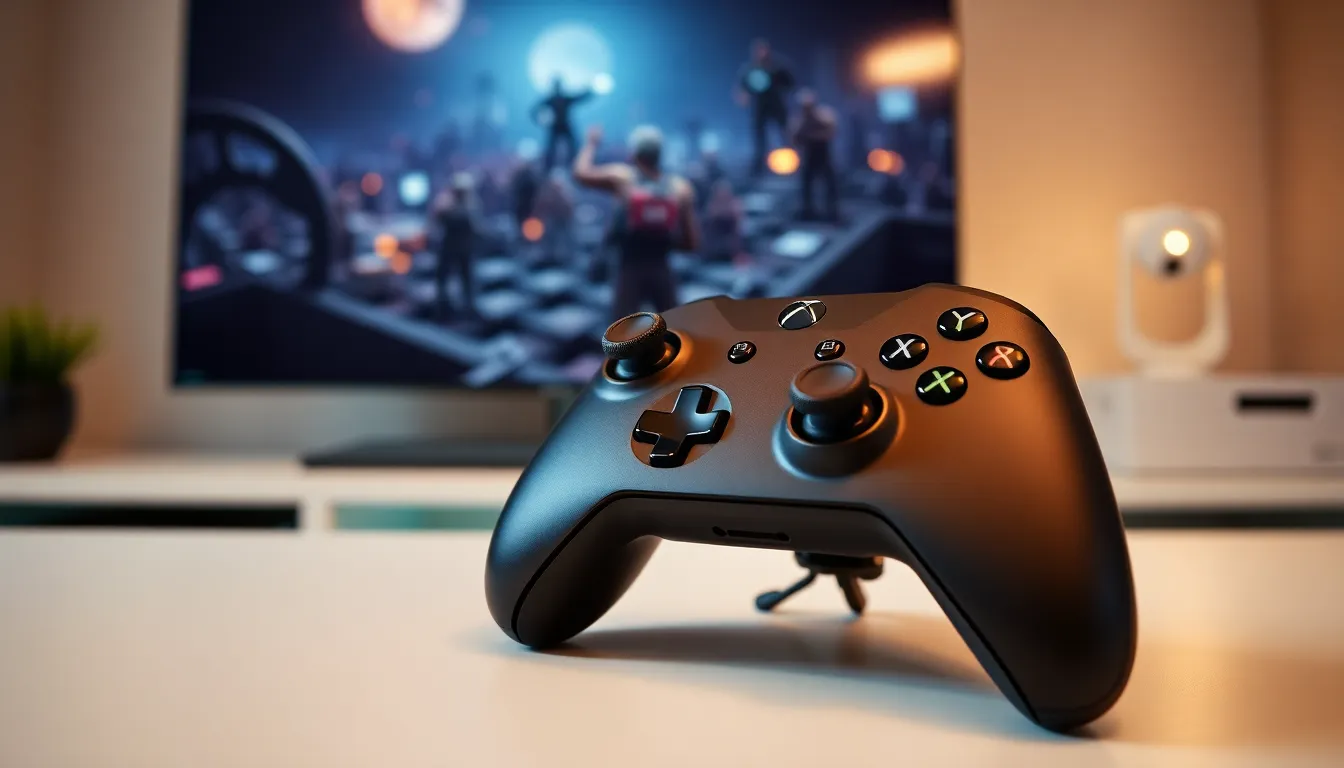
The Xbox One controller is more than just a gaming peripheral: it’s a gateway to immersive worlds and epic stories. This versatile device is known for its ergonomic design, allowing gamers to comfortably engage for hours, whether battling foes or navigating expansive landscapes.
Its layout includes a D-pad, thumbsticks, and action buttons, all engineered for responsiveness. Also, there’s vibration feedback, perfect for creating that adrenaline rush when winning a close encounter.
But before getting into the nitty-gritty of pairing it up, understanding its core features can make all the difference. After all, familiarity breeds confidence.
Types of Connection Methods
Pairing your Xbox One controller doesn’t have to come with a manual worthy of a treasure map. There are a few primary methods that stand out:
- Bluetooth Connection: If you’re using a Windows 10 or newer PC, this is often the simplest route. Just like connecting your phone to a speaker, it’s straightforward and wire-free.
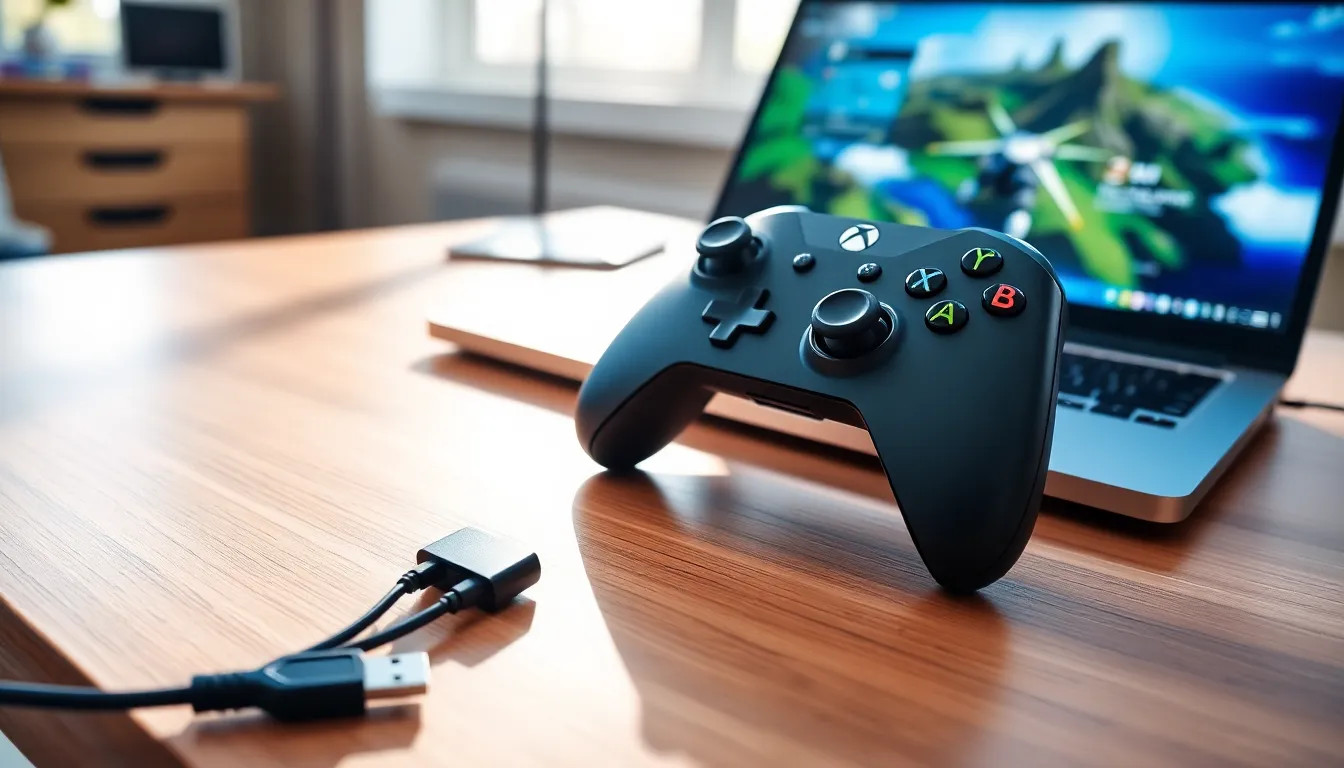
- USB Cable: Sometimes old-school is the way to go. Using a simple USB cable provides a direct connection for those moments when you prefer stability over convenience.
- Xbox Wireless Adapter: This clever little gadget offers an easy way to connect with flexibility, providing a strong signal without the hassle of wires.
Whether you prefer the modern touch of Bluetooth or the reliability of a USB cable, understanding these methods is key to a smooth gaming experience.
How to Pair Your Xbox One Controller via Bluetooth
Pairing your Xbox One controller via Bluetooth is as easy as pie. Follow these steps to get started:
- Check Compatibility: Ensure your device supports Bluetooth. If you’re not sure, a quick check in your settings can confirm.
- Prepare the Controller: Press and hold the Xbox button to turn on the controller. Then, press and hold the sync button (located on the top of the controller) until the Xbox logo starts flashing.
- Access Settings on Your Device: Navigate to the Bluetooth settings. Here, turn on Bluetooth and select ‘Add a device.’ Don’t worry: this won’t involve any secret codes.
- Select Your Controller: Soon, your Xbox One controller will appear in the list. Click on it, and voila, you’ve connected.
Connecting via USB Cable
If Bluetooth isn’t quite to your liking, a USB cable connection can do the trick. Just follow these simple steps:
- Grab a USB Cable: Use a USB A to USB Micro B cable, commonly found with smartphones.
- Plug It In: Connect one end to your controller and the other to the USB port on your device.
- Boot Up: Turn on your controller, and it should automatically connect.
This method is excellent for those who might have a few hiccups with Bluetooth but still want to enjoy gaming without interruptions.
Using the Xbox Wireless Adapter
The Xbox Wireless Adapter can be a game-changer for those needing a stable connection without wires. Here’s how to get it set up:
- Find Your Adapter: Plug the Xbox Wireless Adapter into a USB port on your PC.
- Setup: The system should recognize it instantly. You may need to download drivers, but most modern setups handle that automatically.
- Sync the Controller: Turn on your controller, press the sync button, and then, on the adapter, press the button until the light starts blinking. When the light on the controller and adapter turns solid, you’re good to go.
Now you have a reliable wireless connection, allowing freedom of movement, great for those intense gaming moments.
Troubleshooting Connection Issues
Even the best of us encounter issues from time to time. If you find your controller refusing to connect, don’t panic. Here are some tips:
Maintaining Your Controller Connection
- Restart Your Devices: Sometimes, all it takes is a little reset. Restart both the controller and the device you’re connecting to.
- Check Batteries: Empty batteries can ruin the best gaming session. Swapping out batteries or charging the controller might solve the problem.
- Interference: Ensure there’s no interference from other wireless devices. Sometimes a little distance can make a big difference.
- Update Drivers: For Windows users, outdated drivers can lead to connectivity problems. A quick check for updates can resolve many issues.
If all else fails, restarting the Bluetooth service on your PC could do the trick.