Nothing kills the vibe faster than settling in for a gaming session only to watch your Xbox controller blink endlessly without connecting. That rapid flashing light isn’t just annoying, it’s your controller trying to tell you something’s wrong. Whether you’re dealing with a brand-new Xbox Series X
|
S controller or an older Xbox One model, that blinking pattern usually means the controller can’t establish or maintain a connection to your console or PC.
The good news? Most blinking controller issues aren’t hardware failures. They’re connection hiccups that can be fixed in minutes with the right approach. This guide walks through exactly why your Xbox controller keeps blinking, what those different flash patterns actually mean, and the proven fixes that work in 2026, from simple re-syncing to advanced troubleshooting for stubborn connectivity problems.
Table of Contents
ToggleKey Takeaways
- An Xbox controller blinking indicates a lost wireless connection or pairing issue, not necessarily a hardware failure—most cases resolve with re-syncing, battery replacement, or firmware updates.
- Different blinking patterns communicate specific problems: slow steady blinks mean reconnection in progress, rapid flashing indicates pairing mode without device detection, and two quick blinks signal low battery.
- Re-syncing your controller to the console (holding the Pair buttons on both devices simultaneously) fixes approximately 70% of blinking issues within minutes.
- Check batteries first since low power is the most commonly overlooked cause of wireless connection problems; weak or degraded rechargeable packs are often culpable after 2-3 years of use.
- On PC, the official Xbox Wireless Adapter eliminates about 80% of connection headaches compared to Bluetooth pairing, making it the most reliable method for PC gaming.
- Contact Xbox Support for controllers less than 90 days old or consider replacement if physical damage is extensive, but preventive maintenance like regular firmware updates and proper storage can avoid future blinking issues.
Why Is Your Xbox Controller Blinking?
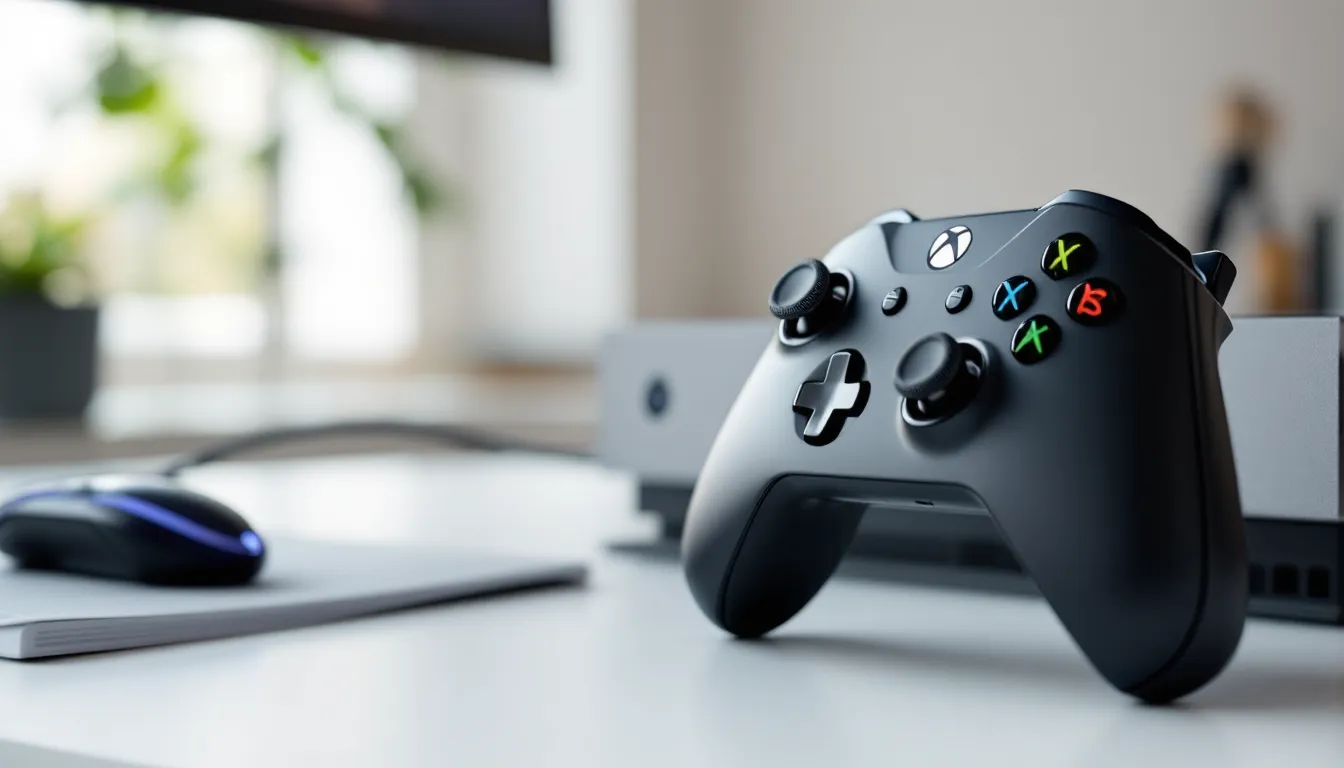
When you see that blinking Xbox button, your controller is actively searching for a device to pair with. It’s the wireless equivalent of shouting into the void, hoping something responds. Understanding what triggers this behavior, and recognizing the different patterns, is the first step toward fixing it.
Understanding the Different Blinking Patterns
Not all blinks are created equal. Xbox controllers use different flash patterns to communicate their status:
- Slow, steady blinking: The controller is trying to pair or reconnect to a console or PC. This is normal when you first turn it on or if the connection was interrupted.
- Rapid flashing: Usually indicates the controller is in pairing mode but can’t find the device it’s looking for, or there’s active interference blocking the signal.
- Two quick blinks then pause: Often signals low battery. The controller is struggling to maintain enough power for a stable connection.
- Blinking then stopping with no connection: Points to a failed pairing attempt or a firmware issue preventing handshake completion.
On Xbox Series X
|
S controllers released after late 2024, Microsoft added a subtle double-pulse pattern when the controller detects multiple nearby consoles, a small QoL improvement that helps in households with multiple Xbox systems.
Common Causes Behind Controller Blinking Issues
Why does your Xbox controller keep blinking in the first place? Several culprits show up repeatedly:
Power problems top the list. Weak or dying batteries can’t sustain the wireless connection, causing the controller to repeatedly attempt reconnection. Rechargeable battery packs degrade over time, after 500-800 charge cycles, they hold significantly less juice.
Lost sync happens when the controller “forgets” which console or device it’s paired to. This can occur after system updates, when using the controller with multiple devices (PC and console), or after extended periods of non-use.
Wireless interference from routers, Bluetooth speakers, microwaves, or other 2.4GHz devices can jam the signal. Xbox controllers use a proprietary 2.4GHz protocol similar to Wi-Fi, making them vulnerable to the same interference sources.
Firmware mismatches occasionally pop up after console system updates. If your console updated but the controller didn’t, they might struggle to communicate properly.
Physical obstructions between controller and console weaken the signal. Xbox controllers have roughly 19-23 feet of optimal range in clear line-of-sight, but that drops dramatically through walls or metal furniture.
How to Fix an Xbox Controller That Won’t Stop Blinking
Let’s cut straight to the solutions. These methods address the vast majority of blinking controller issues, starting with the simplest fixes and progressing to more involved troubleshooting.
Method 1: Re-Sync Your Controller to the Console
Re-syncing forces a fresh pairing between controller and console, clearing out any connection glitches. This fix works about 70% of the time based on community troubleshooting data.
**For Xbox Series X
|
S and Xbox One:**
- Turn on your Xbox console
- Press and hold the Pair button on the console (small circular button near the USB port on Series X
|
S, on the front panel of Xbox One)
- Within 20 seconds, press and hold the Pair button on your controller (small button on top near the bumpers)
- Hold both buttons until the Xbox button on the controller stops flashing and stays lit
The pairing process typically completes in 5-10 seconds. If it takes longer or fails, move closer to the console and eliminate any obstacles between them. Many gamers troubleshooting pairing Xbox One controllers find that being within 3-4 feet during initial sync prevents most connection failures.
Method 2: Check and Replace the Batteries
Low power causes more connection issues than most players realize. Even if your controller turns on, insufficient voltage can prevent stable wireless communication.
Quick battery diagnostics:
- Remove the battery cover and check battery contacts for corrosion or dirt
- If using AA batteries, swap them for fresh ones (brand matters, cheap batteries often underperform)
- For rechargeable packs, try a different pack or use USB cable to rule out battery issues
- If the controller connects fine when plugged in via USB but won’t connect wirelessly, your batteries are the problem
Microsoft’s official rechargeable battery packs from 2020-2022 had a known degradation issue where they’d drop to 60% capacity within 18 months. If you’re using one from that batch, replacement is probably overdue.
Method 3: Update Your Controller Firmware
Controller firmware updates fix compatibility bugs and improve connection stability. Microsoft pushes these updates periodically, but they don’t install automatically unless you connect via USB.
To update Xbox controller firmware:
- Connect the controller to your Xbox console using a USB-C cable (Series X
|
S) or micro-USB (Xbox One)
- Press the Xbox button to open the guide
- Navigate to Profile & system > Settings > Devices & connections > Accessories
- Select your controller from the list
- If an update is available, you’ll see a Firmware version option with an update prompt
- Select Update now and wait 2-3 minutes
Don’t disconnect the controller during updates, it can brick the firmware. The December 2025 firmware update (version 5.17.3202.0) specifically addressed wireless connectivity issues with Series X
|
S controllers, so staying current matters.
Method 4: Hard Reset Your Xbox Controller
A hard reset clears the controller’s temporary memory and connection cache. It’s essentially turning it off and on again, but more aggressively.
Standard hard reset:
- Hold the Xbox button for 10-15 seconds until it turns off
- Remove the batteries (or disconnect rechargeable pack)
- Press the Xbox button 3-4 times to discharge residual power
- Wait 30 seconds
- Reinsert batteries and turn the controller on
Factory reset (for stubborn issues):
There’s no official factory reset button, but you can achieve similar results by unpairing the controller from all devices, then re-pairing fresh. On your Xbox console, go to Settings > Devices & connections > Accessories, select the controller, and choose Remove device. Then pair it again from scratch.
Fixing Blinking Issues When Connecting to PC
PC connections introduce additional variables that don’t exist with consoles. Why is your Xbox One controller flashing and not connecting to your gaming rig? Usually it’s a driver issue, adapter problem, or Bluetooth quirk.
Using Xbox Wireless Adapter for Windows
The official Xbox Wireless Adapter (the small USB dongle) provides the most reliable PC connection because it uses the same proprietary protocol as Xbox consoles rather than relying on Bluetooth.
Troubleshooting adapter connectivity:
- Update adapter drivers: Open Device Manager, find “Xbox Wireless Adapter for Windows” under Network adapters, right-click, and select “Update driver”
- Check USB port power: Plug the adapter into a USB 2.0 port directly on the motherboard, USB 3.0 can sometimes cause interference, and hubs often provide insufficient power
- Re-bind the controller: Press the pairing button on the adapter (small button on the dongle), then press the pairing button on your controller within 20 seconds
- Verify driver version: The adapter should be running driver version 10.0.22621 or newer as of March 2026
Tech reviewers at publications like PCMag consistently find that the wireless adapter eliminates about 80% of PC connection headaches compared to Bluetooth pairing.
Troubleshooting Bluetooth Connection Problems
Bluetooth connectivity is convenient but less stable than the wireless adapter. Xbox controllers use Bluetooth 4.0+ (Series X
|
S controllers support Bluetooth 5.1), but compatibility depends heavily on your PC’s Bluetooth chip and drivers.
Common Bluetooth fixes:
- Forget and re-pair: In Windows Settings > Bluetooth & devices, remove the Xbox controller, then pair it fresh
- Update Bluetooth drivers: Check your motherboard manufacturer’s website for the latest Bluetooth drivers, Windows Update often lags behind
- Disable Bluetooth power saving: In Device Manager, find your Bluetooth adapter under Bluetooth, open Properties, go to Power Management tab, and uncheck “Allow the computer to turn off this device to save power”
- Check Bluetooth version: Controllers need at least Bluetooth 4.0 to connect. Run
Get-PnpDevice -Class Bluetoothin PowerShell to check your adapter specs - Reduce 2.4GHz congestion: Move your Wi-Fi router away from your PC, or switch to 5GHz Wi-Fi to reduce interference
If your Xbox controller keeps flashing during Bluetooth pairing, the issue is often that Windows tries to connect before the controller finishes entering pairing mode. Wait until the controller’s rapid flashing steadies into a slower blink before clicking “Pair” in Windows.
Dealing with Specific Xbox Controller Models
Different Xbox controller generations have their own quirks and known issues. Here’s what to watch for based on which model you’re using.
Xbox Series X
|
S Controller Blinking Issues
The current-gen controller (model 1914) launched in November 2020 and received a minor hardware revision in September 2023 that improved wireless antenna performance.
**Common Series X
|
S-specific problems:**
- USB-C connection issues: Some third-party USB-C cables don’t fully seat in the port, causing intermittent disconnects. Use the official cable or verify your cable clicks firmly into place
- Share button interference: A small batch of controllers manufactured in Q1 2024 had faulty Share button circuits that caused wireless interference. Check your controller’s manufacture date (small text inside battery compartment), if it reads “MFR DATE 2024-01” through “2024-03,” contact Xbox Support for a replacement
- Cross-device confusion: These controllers remember up to 8 paired devices. If you’ve paired to multiple PCs, phones, and consoles, the controller might try connecting to the wrong device. Un-pair from unused devices to eliminate confusion
The textured grip on Series X
|
S controllers can hide dirt buildup around the pairing button. Clean this area with a dry toothbrush if the button feels sticky or unresponsive.
Xbox One Controller Troubleshooting
Xbox One controllers span multiple hardware revisions from 2013-2020, including models 1537, 1697, and 1708. The most significant change came with model 1708 (released June 2016), which added Bluetooth support.
Xbox One controller gotchas:
- Micro-USB port failure: The micro-USB port on Xbox One controllers is notoriously fragile. If yours wiggles or doesn’t click securely, the port may be damaged, this prevents both charging and firmware updates
- Older firmware: Many Xbox One controllers haven’t been updated since 2022. Connect via USB and check for firmware updates, especially if you recently updated your console to the March 2026 system software
- Model 1537 limitations: The original Xbox One controller (1537) lacks Bluetooth entirely and has weaker wireless range than later models. If you’re experiencing connection issues beyond 12-15 feet, hardware limitations may be the culprit
Gamers wondering if older Xbox 360 controllers might work as alternatives should know they’re incompatible with Xbox One and newer consoles, making troubleshooting your current controller the only path forward.
Xbox Elite Controller Connection Problems
Elite controllers (both Series 1 and Series 2) use the same basic wireless tech but add mechanical complexity that introduces unique failure points.
Elite-specific issues:
- Grip detachment on Series 1: The rubberized grips on Elite Series 1 controllers commonly detach after 2-3 years. If grip adhesive has seeped into internal components, it can cause electrical shorts affecting wireless performance
- Series 2 charging dock conflicts: When Elite Series 2 controllers are connected to the charging dock, they sometimes won’t pair wirelessly to other devices. Remove from dock completely before pairing
- Profile switching glitches: If you’ve saved custom button profiles, occasionally the controller will flash while trying to load a corrupted profile. Connect via Xbox Accessories app and reset profiles to default
- Premium doesn’t mean problem-free: Elite controllers have higher reported failure rates than standard controllers according to community surveys. Microsoft extended the Series 2 warranty to one year specifically because of widespread reliability issues
Elite Series 2 controllers received a significant firmware update in November 2025 (version 5.15.3198.0) that fixed several connection stability bugs, so updating should be your first move if you’re experiencing problems.
Advanced Troubleshooting for Persistent Blinking
If standard fixes haven’t resolved your blinking controller, it’s time to dig deeper. These advanced techniques catch the edge cases and hardware failures that simpler methods miss.
Checking for Interference and Range Issues
Wireless interference operates on the 2.4GHz frequency band alongside Wi-Fi, Bluetooth devices, wireless keyboards, baby monitors, and even some LED light bulbs. When multiple devices compete for the same spectrum, connections become unstable.
Systematic interference testing:
- Move your Xbox console to a completely different room and try pairing there
- Turn off all other wireless devices in your gaming space, routers, phones, smart speakers
- Check if your console is inside an entertainment center or cabinet, wood and metal significantly attenuate wireless signals
- Test at different times of day, apartment buildings often have heavy 2.4GHz congestion during evening hours when everyone’s streaming
- Download a Wi-Fi analyzer app on your phone to visualize 2.4GHz congestion in your space
Tech sites like How-To Geek regularly document how gaming setups near aquariums, refrigerators, or concrete walls can suffer from severe wireless degradation. The water in aquariums and the metal/coolant in refrigerators particularly disrupt 2.4GHz signals.
Range optimization:
Xbox Series X
|
S controllers typically maintain stable connections up to 23 feet in open space, but real-world range is usually 12-15 feet once walls and furniture are factored in. If you’re gaming from a couch across a large room, range might be your issue. The console’s internal antenna position also matters, Series X (tower) has the antenna near the top front, while Series S has it in the rear.
Inspecting the Controller for Hardware Damage
When software fixes fail, physical damage is often the culprit. Controllers take serious abuse, drops, thrown during rage quits, spilled drinks, pet damage.
Visual inspection checklist:
- Pairing button functionality: The button should click cleanly without sticking. If it feels mushy or doesn’t return after pressing, the internal switch may be damaged
- Battery contact corrosion: Remove the battery cover and examine the metal contacts. Green/white corrosion (from leaking batteries) prevents proper power delivery. Clean with rubbing alcohol and a cotton swab
- Cracked shell: Hairline cracks near the shoulder buttons or grips can sever internal wireless antenna traces. These aren’t always obvious from the outside
- Water damage indicators: Some controllers have moisture indicators inside the battery compartment, a white sticker that turns red/pink when exposed to liquid
- Loose components: Shake the controller gently near your ear. Rattling suggests broken internal parts
Opening the controller voids any remaining warranty but allows inspection of the internal antenna and circuit board. The wireless module is usually near the top center of the board. Look for burn marks, detached connectors, or obviously damaged components.
When to Contact Xbox Support or Consider Replacement
Sometimes the smart play is admitting defeat and getting professional help or buying new hardware.
Contact Xbox Support if:
- Your controller is less than 90 days old (standard warranty period in the US as of 2026)
- You have an Elite Series 2 controller less than one year old
- The controller was damaged during shipping or arrived defective
- You’ve confirmed the console pairs with other controllers fine, ruling out console-side issues
Microsoft’s support team can run remote diagnostics and sometimes push firmware fixes not available through standard updates. Gaming news sites like Windows Central reported in January 2026 that Microsoft started offering free controller replacements for specific manufacture date ranges experiencing widespread wireless chip failures.
Consider buying a new controller if:
- The controller is 3+ years old and has heavy use, internal components naturally degrade
- Repair quotes exceed $40-50 (new controllers typically run $60-75 on sale)
- You’ve already replaced it once before with the same recurring problem
- Physical damage is obvious and extensive
Third-party controllers from brands like PowerA or Razer offer budget alternatives ($35-45), but they generally lack the wireless range and reliability of official Microsoft controllers. If you’re replacing anyway, spending extra for an official controller usually pays off in longevity.
Preventing Future Controller Connection Problems
Once you’ve fixed your blinking controller, a few preventive habits will keep it running smoothly and reduce the chances of future connection headaches.
Battery management matters more than most gamers realize. Keep a spare set of rechargeable batteries or AAs ready so you’re never gaming on dangerously low power. Replace rechargeable packs every 2-3 years before they degrade to the point of causing connection issues. Eneloop Pro batteries are the community favorite, they hold charge for months and deliver consistent voltage.
Regular firmware updates prevent compatibility gaps. Once every 3-4 months, plug your controller in via USB and check for updates. Set a calendar reminder if you need to, forgetting about firmware is how you end up with a controller that suddenly won’t pair after a console system update.
Clean pairing button maintenance keeps the sync process reliable. Every few months, inspect the pairing button for dirt or grime buildup. A quick wipe with a slightly damp cloth prevents the button from becoming stuck or unresponsive. The same goes for the battery contacts, corrosion can creep in slowly if you use cheap batteries.
Manage your paired devices list if you use your controller with multiple systems. Don’t pair to everything you own, every device the controller “remembers” is another potential source of confusion when it tries to auto-connect. Stick to 2-3 active pairings maximum.
Keep wireless space clean by positioning your console in the open with good line-of-sight to your gaming spot. Don’t trap it in closed cabinets or stack other electronics directly on top. Give the wireless signal room to breathe. If you’re setting up a new gaming space, keep routers and consoles on opposite sides of the room when possible to minimize 2.4GHz interference.
Store controllers properly when not in use. Remove batteries if you won’t use the controller for more than a week, this prevents battery leakage and extends battery life. Store in a cool, dry place away from direct sunlight, which can degrade the plastic and internal components over time.
These habits take minimal effort but dramatically reduce the likelihood of waking up one day to find your Xbox controller flashing endlessly when you just want to game.
Conclusion
A blinking Xbox controller is frustrating, but it’s rarely a death sentence for your hardware. The vast majority of cases trace back to lost sync, weak batteries, or wireless interference, all fixable with the right approach. Start with the simple stuff: re-sync the controller, swap the batteries, and update the firmware. Those three steps alone resolve most blinking issues in under five minutes.
For stubborn problems, systematically work through the advanced troubleshooting, check for interference, inspect for physical damage, and don’t hesitate to reach out to Xbox Support if your controller is still under warranty. Sometimes the hardware genuinely fails, and that’s what warranties and replacements exist for.
The key takeaway? Don’t just accept a flashing controller as a random tech gremlins situation. That blinking light is communication, and now you know exactly what it’s trying to tell you and how to fix it. Get that controller connected and get back to gaming.